How do I extend an AI video?
Either generate a longer clip, up to 30 seconds on SpicyFrame, or export the last frame of a clip and use it as the reference for the next one.
SPICYFRAME · PRACTICAL GUIDES
AI video extender guide: how to extend an AI video to 30 seconds in one go, or chain clips with the last frame as the next reference. Prompts and prices.
5 seconds · 480p · $3.99. Pay per video, no subscription required.
Updated
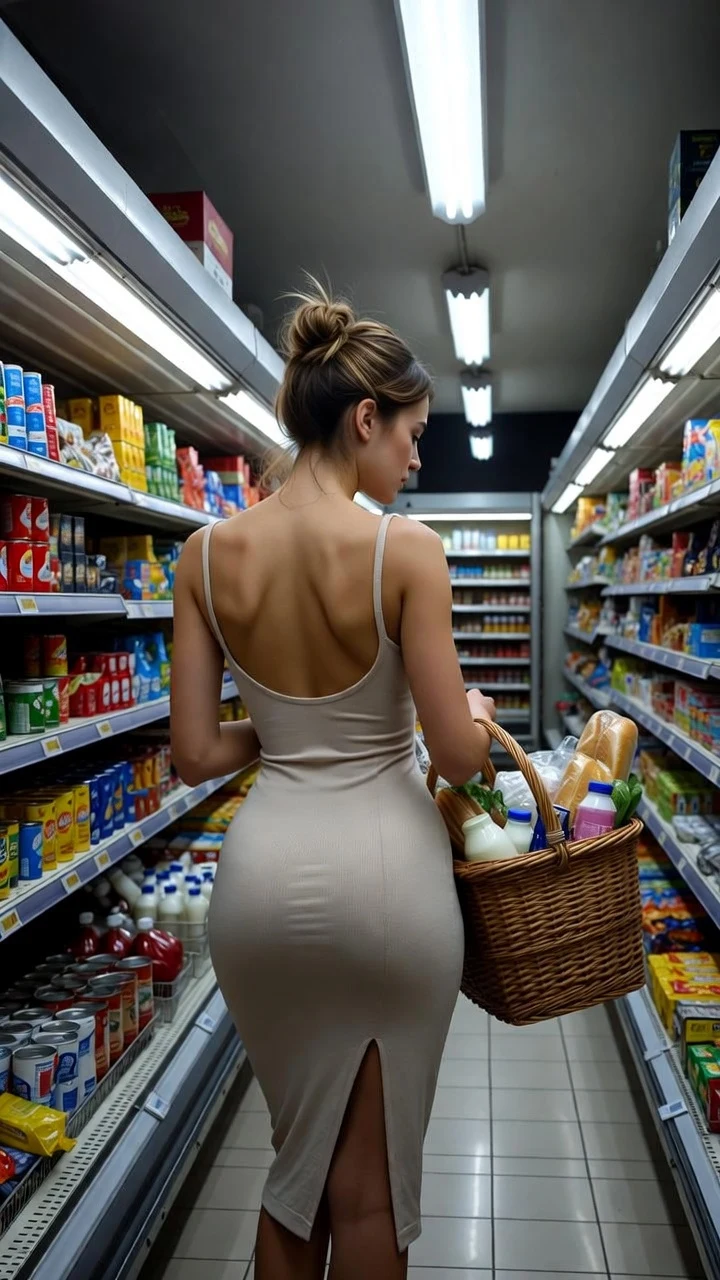
A public SpicyFrame example illustrating the guide. Results depend on the photo and prompt.
The simplest AI video extender is not an extender at all: ask for a longer clip from the start. SpicyFrame generates 5, 10 or 30 seconds in one pass as a vertical 9:16 MP4 with native ambient audio, so you can extend an AI video by choosing 30 seconds instead of stacking short pieces. If you need more than 30 seconds, or you already have a clip you want to continue, chain clips: export the last frame of the first clip, use it as the reference image for the next one, and describe what happens next. SpicyFrame does not stretch or splice a finished clip for you automatically; you assemble the pieces. The studio is 18+ and makes suggestive, non-explicit scenes of fictional or consenting adults.
There are two honest routes to make an AI video longer. The first is a single longer generation: the model plans the whole scene and keeps faces, clothing and light consistent from beginning to end. This is the best choice up to 30 seconds. The second is chaining: you generate a clip, take its final frame, and start a new clip from that frame so the motion appears to continue. Chaining gives you a story of any length and lets you change the camera or the action between shots, but each link can drift a little, so the face and outfit need watching. Tools that promise to extend any existing video generally predict new frames from the last one in the same way; the difference is how much you control.
Choose the length that fits one complete action. Five seconds suits a single beat such as a glance or a turn. Ten seconds suits an action that develops and settles. Thirty seconds suits one slow, continuous scene, such as a walk along a shoreline or a dance under a changing light. Longer clips give the model more frames in which a hand or a pattern can drift, so describe slow, continuous movement with a beginning and an ending rather than several actions. Test the idea at five seconds in Medium 480p first, then rerun it at ten or thirty seconds once the motion works. For a deeper look at timing, see the duration guide linked below.
Follow these steps. 1. Generate clip A and watch it to the end. 2. In a video editor or a phone player, export the last frame as a PNG or JPG; pick a sharp frame a few frames before the very end if the final one is blurred. 3. Open the SpicyFrame studio and add that frame as @Image 1; if you also have the original photo, add it as @Image 2 to anchor the face and outfit. 4. Write a prompt that starts where clip A stopped and describes the next action. 5. Generate clip B at the same resolution. 6. Repeat for as many links as you need, then join the clips in an editor and trim the overlapping frames. Keep every image under 10 MB, and use only JPG, PNG or WEBP files.
Name the starting state, then the next action. 1. “Continue from @Image 1: she turns from the window toward the camera and smiles, same light, slow push-in, soft room tone.” 2. “@Image 1 is the opening frame; she steps forward through the doorway, steady tracking shot, same warm lamps.” 3. “Starting from @Image 1, the camera pulls back to reveal the whole room while she lifts a glass, same outfit, same light.” 4. “@Image 1 as the first frame; she walks to the pool edge and sits, golden hour, gentle water sounds.” Add “@Image 2 for face and outfit” when the character matters. Keep wardrobe, setting and light words identical across links so the sequence reads as one scene.
Consistency is the main challenge in chaining. Reuse the same original photo as an extra reference in every link, keep the face large and unobstructed in the exported frame, and repeat the same wardrobe and lighting words in each prompt. Avoid cutting from a close-up to a distant shot in one link, because small faces drift. If clip B starts to look different, go back one step, use an earlier, clearer frame of clip A, and shorten clip B to five seconds. Every generation is a new interpretation, so the same frame and prompt will not give an identical clip twice; review the first, middle and last frames of each link before you join them.
Write a three-line storyboard first: where the scene starts, what changes, and how it ends. Give each link one camera move and one action, and let the ending of each clip be a stable pose, because a calm last frame makes a better reference than a moving blur. A 30-second first clip plus one 10-second continuation is often smoother than six five-second links, since you handle fewer joins. Trim a few frames at each cut and add licensed music or captions in your editor; SpicyFrame audio is original ambient sound, not a music track. See the storyboard guide for more planning ideas.
Once you have two or more clips, import them into any phone or desktop editor in the order of your storyboard. Because each continuation starts from the last frame of the previous clip, the first frame of clip B should match the last frame of clip A, so trim one or two frames from the start of clip B to hide the repeat. Add a short cross-dissolve of a few frames if the motion changes speed at the join. Match brightness and color between clips with the editor’s basic correction, then add licensed music or captions. Export in vertical 9:16 for Reels, Shorts and TikTok. Keep the original clips, the exported frames and your prompts together, so you can regenerate a single weak link without redoing the whole sequence.
Prices are shown before you create. Medium 480p costs $3.99, $4.99 or $11.99 for 5, 10 or 30 seconds; High 720p costs $4.99, $8.99 or $24.99. Ultra High 1080p costs $11.99, $23.99 or $70.99. A single 30-second Medium clip costs $11.99, while six five-second Medium links cost $23.94, so one longer generation is usually the better value and gives smoother motion. You can pay for a single video without a subscription, or top up piments at 100 piments per dollar; optional weekly plans give 25% more piments for the same money. Confirmed failures restore piments or refund a single-video payment.
You must be 18 or older. Only fictional adults, yourself or consenting adults may appear in your references, and owning a file does not establish consent. Nudity, sexual acts and explicit close-ups are against the terms, as are minors, anyone who could look underage, celebrities, impersonation and non-consensual imagery. Chaining does not bypass these checks: every clip, including each continuation, is reviewed on its own. If a link is refused, rewrite the prompt around clothing, light and a simple gesture and try a five-second test again. SpicyFrame is an independent studio and is not affiliated with other video tools.
| Method | Length | Best for | Watch out for |
|---|---|---|---|
| One 5-second clip | 5 s | A single glance, turn or smile | Short; best as a test |
| One 10-second clip | 10 s | An action that develops and settles | Keep to one action |
| One 30-second clip | 30 s | A slow, continuous scene | Describe steady movement |
| Chain with the last frame | Any, joined by you | Longer stories and camera changes | Face and outfit drift between links |
| Loop the best section | Repeats a short segment | Backgrounds and looping posts | Needs a matching start and end |
Either generate a longer clip, up to 30 seconds on SpicyFrame, or export the last frame of a clip and use it as the reference for the next one.
No. It generates new clips from images and prompts; you export the last frame and join the clips yourself in an editor.
5, 10 or 30 seconds in one pass, as a vertical 9:16 MP4 with native ambient audio.
Chain clips: use each clip’s last frame as the next reference, keep the same wardrobe and light words in every prompt, and join the pieces in an editor.
Each clip is a new generation. Add the original photo as a second reference, keep the face large in the exported frame and keep clips short.
Usually yes for smoothness and value: it needs no joins and costs $11.99 in Medium, against about $23.94 for six five-second clips.
JPG, PNG or WEBP files up to 10 MB each, with up to 12 references per video.
Only suggestive, non-explicit scenes of fictional or consenting adults aged 18 or older. Explicit content is not offered, and prompts for nudity are against the terms.
External pages, opened in a new tab. Rankings reflect the time of writing.