Why do AI image-to-video clips have artifacts?
The model invents new frames from a still image. Hidden angles, unclear hands, busy backgrounds, stacked camera moves and long durations all give it more to guess.
SPICYFRAME · PRACTICAL GUIDES
Fix AI image-to-video artifacts like face drift, extra fingers, flicker and warping backgrounds: find the cause, change one variable and retest cheaply.
5 seconds · 480p · $3.99. Pay per video, no subscription required.
Updated
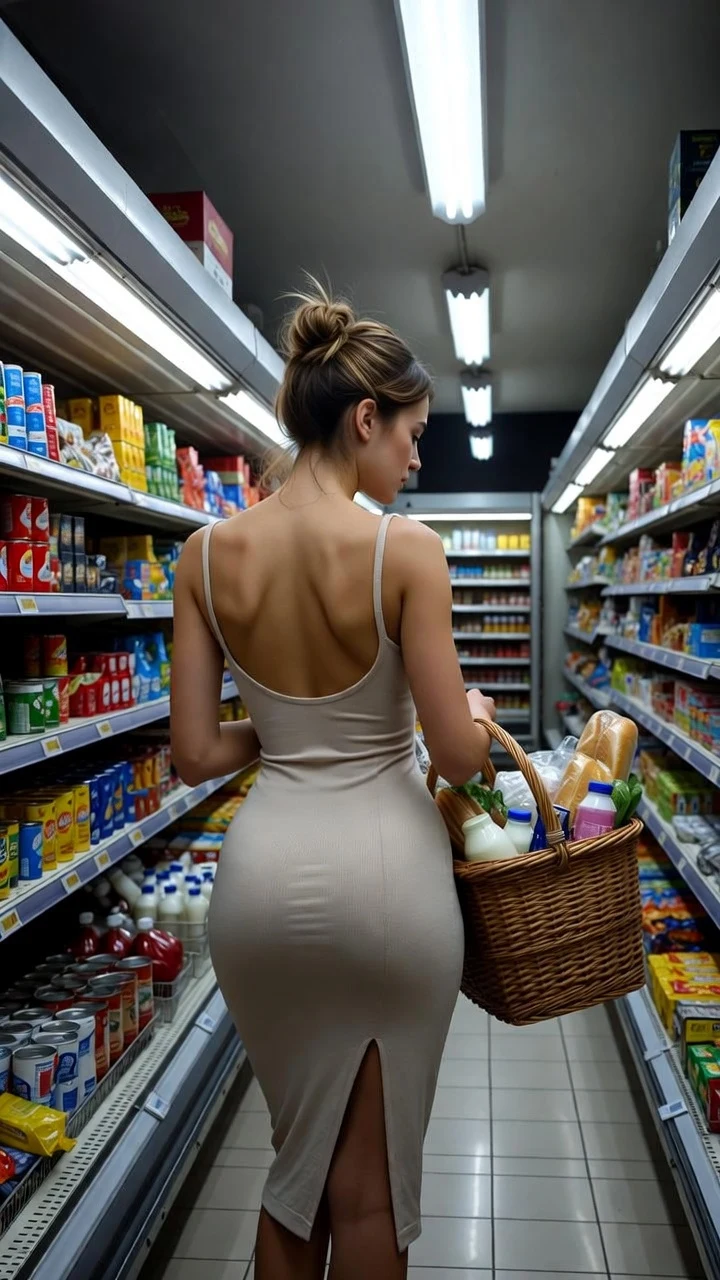
A public SpicyFrame example illustrating the guide. Results depend on the photo and prompt.
To fix AI image-to-video artifacts, first name the defect and when it starts, then trace it to one cause: a weak source photo, conflicting references, too much motion, a stacked camera move, unstable lighting or a duration longer than the action needs. Change only that one variable and retest at five seconds in Medium 480p. Most artifacts shrink when the photo is clearer and the movement is simpler. No prompt can guarantee a flawless clip, so plan for review and an occasional new attempt rather than expecting the first render to be perfect.
Watch the clip three times: once at normal speed for the overall effect, once without sound for visual problems and once only for audio. Note the second at which each issue appears and put it in one category: identity, hands and limbs, clothing and accessories, background, camera, light or sound. Artifacts that appear from the first frame usually come from the source photo or the references. Artifacts that grow over time usually come from motion or duration. Problems that start when the camera moves point to the camera instruction.
A face that slowly becomes someone else is the most common image-to-video artifact. The model generates new frames and must invent angles the photo never showed, so large head turns, laughter, distant framing and long clips all raise the risk. Fix it by using a sharp, front or three-quarter lead portrait, removing references with different hairstyles, ages or retouching, keeping the face large in frame and asking for a smaller movement. Shorten the clip to five or ten seconds while testing. A prompt such as “preserve facial features, hairline and eye colour” helps state the goal, but less motion helps more than more adjectives.
Hands distort when fingers are hidden or overlapping in the source, when the prompt asks for detailed object contact, or when arms cross the body. Choose a photo where hands are visible and relaxed, or keep them out of the action entirely. Before: “She picks up a necklace, fastens it behind her neck and turns around.” After: “@Image 1 stands naturally with hands resting still, slow turn toward the window, locked camera.” For full-body motion, leave space around the limbs in the photo and prefer one slow step to a dance. If a hand still breaks in one frame, regenerate rather than hiding it with a fast cut.
Garments can change colour, gain seams or lose straps, and fine patterns, lace, logos and jewelry may shimmer or rearrange. The cause is usually missing or conflicting evidence: an outfit cropped at the edge, a second reference with a different outfit, or a busy pattern the model cannot track through motion. Show the full garment clearly in one reference, name it once (“@Image 2 for the exact outfit”) and remove other outfit photos. Ask for gentle fabric movement rather than spinning or wind-blown motion. Small text and logos are fragile; add exact branding later in a normal video editor instead of relying on generated lettering.
Walls that bend, furniture that melts and crowds that merge usually come from a busy background combined with camera motion. Choose a photo with a clean wall, a simple street with depth or natural scenery. Say “background remains still” when only the subject should move, and avoid asking for a new location that contradicts the reference composition. Mirrors and glass are especially fragile because they invite duplicate faces; keep reflections abstract or crop them out of the source.
If skin or a background wall brightens and darkens while nothing should change, the prompt may contain flashing lights, moving spotlights, lightning or a day-to-night transition. Remove those instructions and describe one constant source that matches the photo: “soft daylight from the left, steady exposure.” Neon, candles and fire can work, but keep them secondary so the whole face does not pulse. Two references with different colour temperatures can also cause a drift in tone. Correct overall colour later in an editor.
Stacking moves such as “orbit, then zoom, then pan, handheld” forces the camera to change direction several times in a short clip, which reads as jitter or warping. Use one move, add “slow”, and match it to the duration: a slow push-in for five seconds, a side tracking shot for a ten-second walk. If the camera moves when you wanted stillness, write “locked camera” or “static shot” explicitly. If the subject slides instead of walking, reduce the camera speed or make the camera static and let the subject move.
SpicyFrame requests native ambient audio with every video. Occasionally you may hear a click, an abrupt cut, a sound that does not match the scene or a speech-like fragment. Name one simple sound environment in the prompt, such as quiet room tone, sea breeze or distant city ambience, rather than several competing sounds. Listen to the whole export with headphones. If the picture is approved but the sound is not, replace or mix the audio in a video editor instead of paying for a new render. The studio does not accept a script, clone a voice or add music.
Every extra second is more generated frames in which a face, hand or pattern can drift. A 30-second render with a five-second action tends to fill the remaining time with improvised motion. Test the action at five seconds first (399 piments in Medium), then extend to ten seconds (799 piments) or thirty (1,999 piments) only when the movement is stable and the prompt describes a slower, continuous action with a beginning and an ending. Higher resolution makes details easier to see but does not correct a motion problem.
Do not change the photo, references, action, camera and duration all at once; you will not know what helped. Do not pile on quality words such as ultra-detailed or masterpiece, which do not fix motion. Do not rely on long lists of things to avoid; describing the stable scene you want is clearer. Do not upscale a clip to hide a changing face, and do not publish a defect hidden by a fast cut or a filter. Keep the version that came closest and iterate from it.
A confirmed technical failure is different from a completed clip with artifacts. When a generation fails or the provider refuses a prompt, SpicyFrame restores the piments, or refunds a single-video payment, according to the order flow. A completed video that contains an artifact is a creative result, and a new attempt is a new paid generation with its price shown before checkout. That is why short Medium tests are valuable: they let you find the stable version of an idea for 399 piments before you pay for the final High render.
| Artifact | Likely cause | First fix to try |
|---|---|---|
| Face drifts or changes identity | Large turns, small face, mixed references, long clip | Smaller movement, sharper lead portrait, five-second test |
| Extra or melted fingers | Hidden hands in the photo or complex object contact | Keep hands still or out of the action |
| Outfit or jewelry changes | Cropped garment or conflicting outfit references | One clear outfit reference named in the prompt |
| Background bends or morphs | Busy scene combined with strong camera motion | Simpler background and “background remains still” |
| Light flickers or pulses | Flashing sources or lighting changes in the prompt | One constant source matching the photo |
| Camera jitters or slides | Several stacked camera moves in a short clip | One slow move or a locked camera |
| Odd sounds or clicks | Competing sound requests or generative variation | One sound environment; fix the mix in an editor |
The model invents new frames from a still image. Hidden angles, unclear hands, busy backgrounds, stacked camera moves and long durations all give it more to guess.
Simplify the movement and use a sharper source photo, then retest at five seconds in Medium 480p while changing only one variable.
No. High 720p adds output detail but does not fix face drift, warped hands or background morphing. Fix the motion first, then render the final in High.
Use a photo with visible, relaxed hands and remove gestures that involve detailed contact with objects. Keeping hands still is the most reliable fix.
Confirmed technical failures and provider refusals restore piments or refund a single-video payment. A completed clip with artifacts counts as a delivered creative result.
Long lists of things to avoid are not a reliable fix. Describe the stable scene you want, with one action and one camera move, and simplify from there.