Does SpicyFrame generate native 4K video?
No. Ultra 1080p is the highest native tier; any 4K resizing or upscaling happens in a separate external application.
SPICYFRAME · PRACTICAL GUIDES
Understand 4K delivery for permitted adult glamour AI video, starting with the studio’s 1080p maximum and verifying a separate external upscale.
5 seconds · 480p · $3.99. Pay per video, no subscription required.
Updated
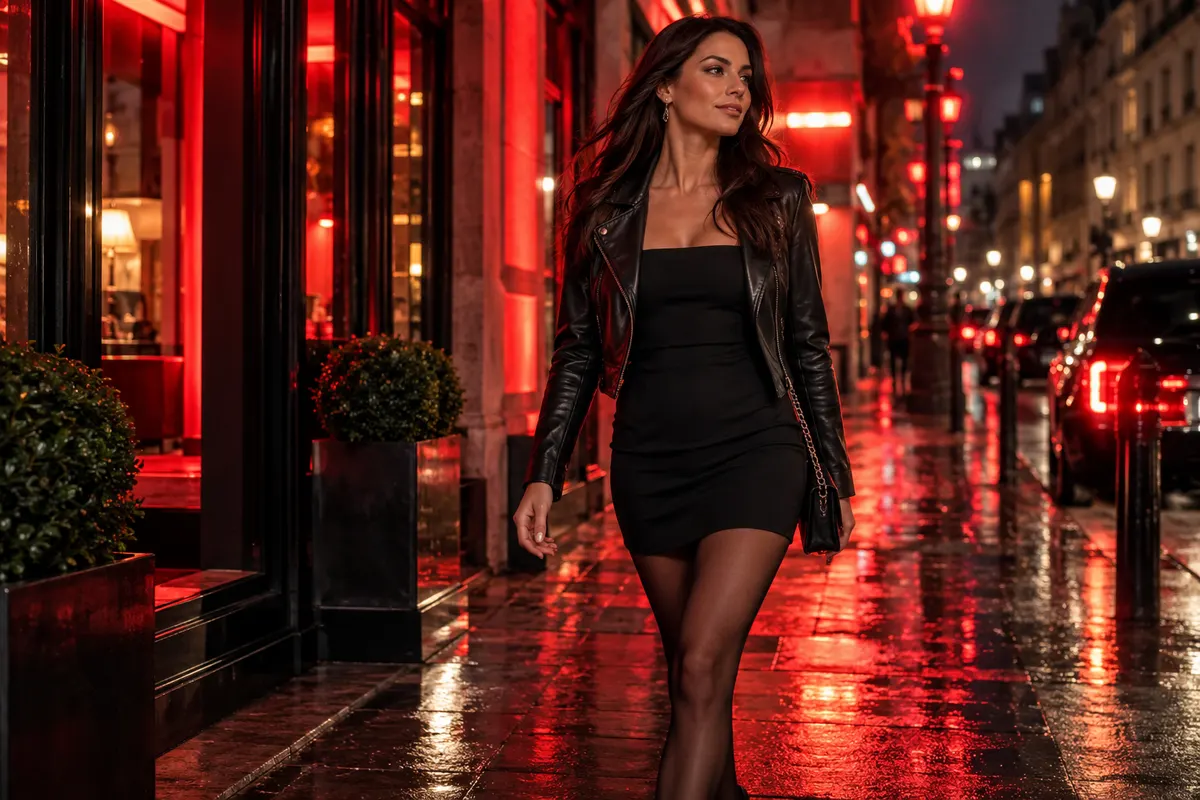
A search for NSFW AI video 4K does not mean SpicyFrame offers a native 4K tier. The studio generates permitted, non-explicit adult fashion clips at Medium 480p, High 720p or Ultra 1080p, with vertical 9:16 MP4 output. Ultra 1080p is the maximum native output option. A separate application can resize or upscale the downloaded file for a larger delivery, but that is an external transformation. State the distinction clearly when presenting the result: an upscaled file is not the same claim as a natively generated 4K clip. Begin with authorized adult imagery and decide why the destination needs a larger frame before investing time in processing. A resolution label alone does not establish fidelity to a real face or garment.
Identify the features a larger presentation should preserve: an adult face, the weave of a jacket, a fine necklace or the shape of a shoe. If those features already look unstable in the source video, an upscale may enlarge or reinterpret the instability. If the original looks coherent but appears soft at the intended display size, an external upscale may be worth evaluating. The resolution guide explains the relationship between source detail and output planning. Do not use a larger export merely to satisfy a number while ignoring the actual appearance. A clean 1080p delivery at a suitable size may serve the project better than a heavily processed larger file with artificial-looking skin or fabric.
Review the original MP4 from start to finish and reject obvious likeness changes, warped hands and shifting garment boundaries before upscaling. Check the clearest reference photograph as well, especially where the video shows embroidery, sequins or makeup detail. A source with coherent motion is more important than one spectacular still surrounded by unstable frames. The photo preparation guide helps with future source selection, while the artifact guide supports diagnosing the existing clip. Keep the untouched original in a clearly named folder. If several candidate generations exist, select the one that meets the fashion brief most faithfully rather than assuming the largest or most sharpened-looking preview is automatically the best master.
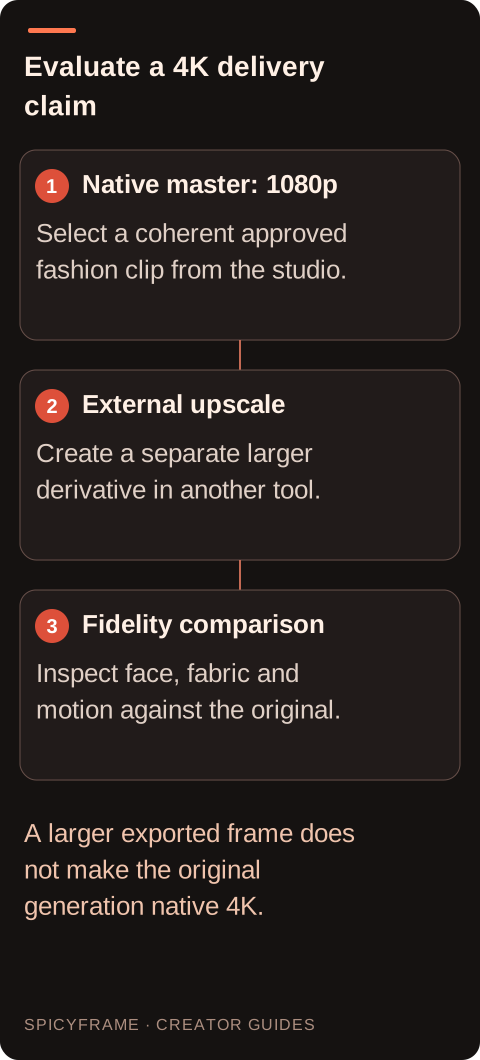
A simple resize changes the pixel grid used to display the image. An enhancement system may also infer or emphasize textures that were not clearly resolved in the original. Those additions can look attractive without being accurate evidence of the garment or person. Inspect eyelashes, lipstick edges, jacket stitching and jewelry for changes that appear overly crisp, repeated or inconsistent. Do not advertise inferred textile detail as a faithful record of an actual product unless it has been verified against approved source material. The method and controls depend on the external tool, so consult its current documentation rather than assuming every upscaler behaves alike. SpicyFrame has no built-in upscaling panel and does not guarantee the outcome of a separate application's processing.
Imagine an authorized adult eveningwear clip with a velvet jacket and satin lapels. The 1080p original has a stable face and coherent movement, but the proposed large display makes the lapels look soft. Export a short test through the chosen external upscaler and compare the same moments at the actual display size. Look for false velvet grain, sharpened pores and a changing highlight edge on the satin. This hypothetical exercise does not claim a measured improvement or a tested tool result. If the upscale adds texture that moves independently of the garment, reduce the enhancement or keep the original delivery. The goal is a better presentation of the approved fashion scene, not the appearance of detail at any cost.
Before processing, record the source duration, orientation and audio presence. Configure the external export to preserve the intended vertical proportions and timing unless the project explicitly calls for another format. Do not stretch a vertical adult portrait to fill a wide canvas. Check whether the tool includes or discards audio, since an attractive enlarged image is incomplete if the required ambience or approved narration disappears. Keep any later titles and soundtrack work in a separate editing project where possible. The fashion video guide helps define the presentation needs, while technical export choices should follow the destination's actual documented requirements. Avoid several unnecessary rounds of compression between the source, upscale and final delivery.
Watch the processed file at normal speed and inspect several transitions: head turns, moving hair, a hand beside a cuff and reflective fabric passing through light. Inferred detail that looks convincing in one still can shimmer between frames. Compare the original and processed versions using the same player and viewing conditions. Pause at matching moments to inspect the face and outfit, then return to full-speed playback to judge naturalness. Look for halos, waxy skin, exaggerated grain and changed lettering on accessories. A larger file does not pass review merely because its dimensions meet a specification. The accepted version must preserve the approved adult likeness, clothing information and motion while providing a useful visible benefit at the intended size. Use a garment truth check alongside the visual quality check. Place an approved still of the jacket or accessory next to the processed frame and compare the location of seams, the number of visible stones or buttons, and the outline of the trim. An enhancement may create a convincing-looking repeated pattern where the original had an indistinct patch. If that pattern is not supported by the source, it should not be treated as a newly recovered product detail. Inspect several moments because an invented stitch can move or disappear as the cloth turns. For an editorial mood piece, a reviewer may accept a mild stylization if it remains consistent with the agreed representation. For a catalog-like view of a real garment, the same change may be unacceptable. Decide this tolerance before processing the full clip. Keep the unprocessed and upscaled versions clearly labeled in the handoff so a later designer does not unknowingly use the derivative as factual reference material. A dimension requirement can be satisfied by a file while its content still fails the project's fidelity requirement; both need independent approval.
When handing off the result, distinguish the generated master from the external upscale and retain both. Record the tool and chosen settings in the project notes so revisions can begin from the correct source. If the destination specifically requires a 4K frame, verify the exported dimensions and playback there, but do not call the underlying SpicyFrame generation native 4K. Keep the review focused on what the viewer can actually see and what the file accurately represents. If external enhancement changes important fashion details or the person's appearance, choose a milder process or the original. An honest, coherent 1080p adult fashion clip can be more useful than a larger derivative whose extra detail cannot be trusted.
| Situation | Action | Verify |
|---|---|---|
| Need native 4K from the studio | Reassess the production requirement | Studio maximum is Ultra 1080p |
| Stable 1080p looks soft on a large display | Test an external upscale | A real viewing benefit appears |
| Face or garment already changes | Fix the source generation first | Structural consistency before enhancement |
| Upscale adds crawling fabric texture | Reduce processing or keep the original | Motion remains natural and faithful |
| Destination requires a larger frame | Verify external export dimensions | Proportions, timing and audio remain correct |
No. Ultra 1080p is the highest native tier; any 4K resizing or upscaling happens in a separate external application.
It cannot guarantee that. Added or inferred texture must be compared with approved source material before being treated as accurate.
Resolve the likeness problem first. Enlarging or enhancing a structurally inconsistent clip does not reliably repair identity.
Do not assume so. Check the external tool's settings and listen to the final exported file from beginning to end.
No. Evaluate the actual viewing size and delivered quality; more pixels may provide little benefit for a small placement.
Describe it as a SpicyFrame-generated clip with a separate external upscale, retaining the distinction from native 4K generation.