Can SpicyFrame generate a square video directly?
No. Its output is vertical 9:16 MP4. Square or landscape presentation requires a separate external crop or padded canvas.
SPICYFRAME · PRACTICAL GUIDES
Prepare adult glamour photos for vertical AI video with room for the face, outfit and gesture, then verify any separate crop used for delivery.
5 seconds · 480p · $3.99. Pay per video, no subscription required.
Updated
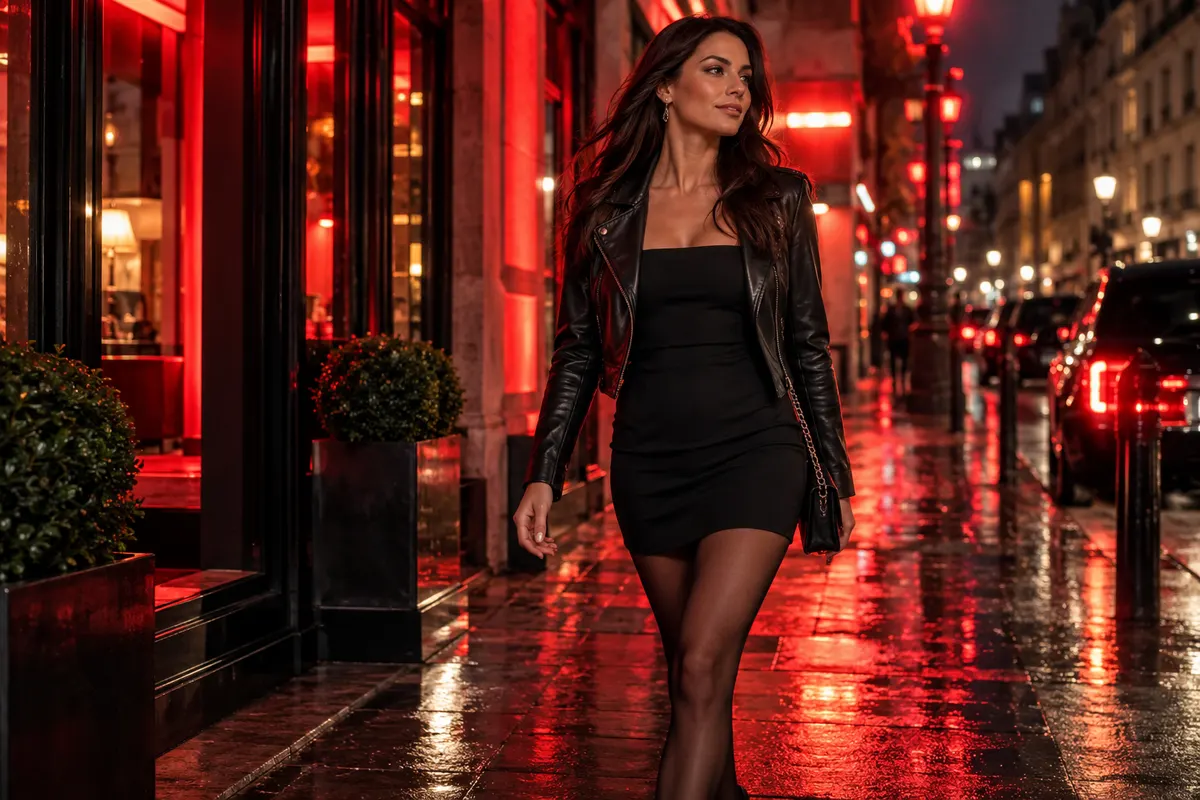
Before cropping an authorized adult glamour photograph, identify the elements that make the pose readable: face, shoulders, hands, waistline, garment hem or footwear. A beauty portrait and a full-length eveningwear image need different boundaries. SpicyFrame generates vertical 9:16 MP4, so a wide source requires a composition decision rather than an assumption that every edge will survive. Keep the scene non-explicit and preserve the agreed representation of the adult and outfit. Cropping should clarify the fashion idea, not unintentionally change its meaning by removing garment context or framing an isolated body region. Work on a copy and keep the approved original intact for comparison.
Look at the silhouette of the whole outfit. A broad jacket, flowing skirt or extended arm may need more lateral room than a narrow portrait crop suggests. Place the most important visual information comfortably within the intended frame, then inspect the corners for distracting fragments of furniture or another person. Do not crop so tightly that the model's head or hands barely fit before any motion begins. The vertical composition guide provides general framing context. Here the practical task is to preserve the relationship between the adult pose and the clothing, so later motion can read as an intentional editorial gesture rather than a subject struggling against the frame.
A still can fit neatly while the intended animation cannot. A small shoulder turn changes the visible width of a jacket; a step can move a heel or garment hem toward the edge; a hand lifted beside a lapel needs clear space above its starting position. Decide which movement matters and leave room for it in the source composition. If the photograph contains no usable margin, reduce the action or choose another authorized image rather than stretching the adult's proportions. The best photos guide helps assess source suitability. A prompt cannot guarantee that tightly cropped anatomy or missing clothing detail will be reconstructed accurately beyond the original boundaries.
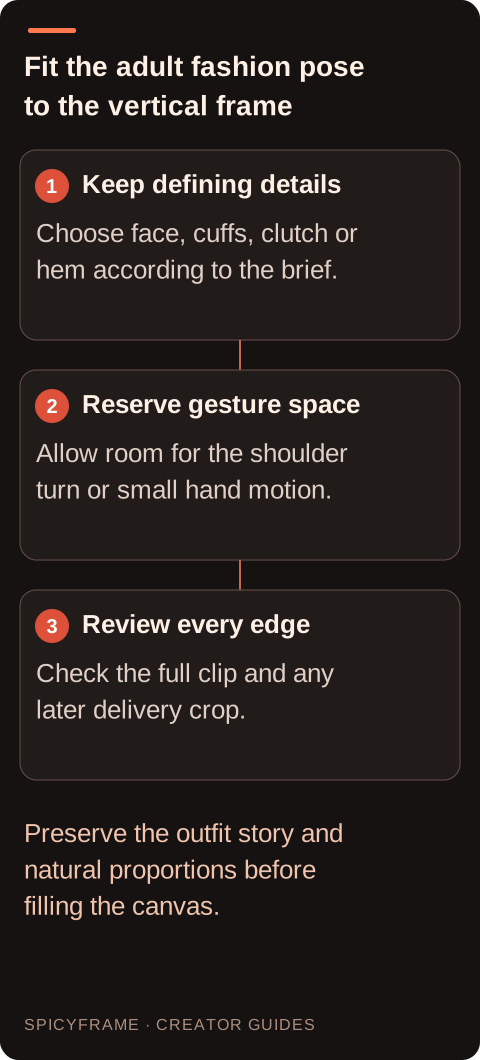
Cropping fills the target canvas by removing part of the picture. It works best when the essential subject remains comfortably inside the new frame for the whole clip. Review motion, not just the opening still: a hand, shoe or garment hem can move into the area you plan to remove. A square crop of a vertical video discards top and bottom content, so inspect headroom, heels, outfit hems and any external captions. If the subject moves, an external editor may allow the crop position to change, but that creates another motion to review. The vertical composition guide helps plan safer margins before the original generation.
Padding places the original picture inside a larger canvas and fills the unused area with a chosen background. It preserves the adult model and complete intended outfit and is often appropriate when important details reach the frame edges. The added space can use a solid color or a deliberately designed layout in an external editor. Avoid filling it with distracting repeated imagery merely because a preset offers that effect. Check that the resulting content remains large enough to read on the target screen. Padding changes presentation, not the original field of view: it cannot reveal scenery outside the generated image. Keep text and branding in the added space only when they support the actual message.
Imagine a wide photograph of an adult model in a long evening coat, with one hand holding a clutch and the other resting by a lapel. A tight vertical crop preserves the face but removes the clutch and coat hem. First decide whether this is a portrait story or an outfit story. For the portrait, choose a calm shoulder movement and a deliberate upper-body crop that still reads naturally. For the outfit, select a wider authorized source with space above the head and below the hem, or accept external padding for a later placement. This hypothetical exercise does not guarantee a render; it shows why the crop should follow the fashion message rather than a reflex to fill every pixel.
If the original photograph cuts off shoes or part of a sleeve, an external crop cannot restore that missing evidence. A different authorized view can be the more effective preparation step. Keep the face large enough to remain recognizable while showing the garment detail needed by the brief. Avoid mixing a beauty close-up and unrelated full-body image without explaining each reference's role. The resolution guide is useful for output planning, but extra pixels do not fix a source composition that omits essential clothing. Generating again still creates vertical 9:16 output; square or landscape delivery remains a separate external formatting decision. Check the crop at three implied poses, even before animation exists: the starting posture, the widest point of the intended gesture and the resting position. You cannot predict every generated movement, but this exercise reveals obvious space conflicts. If the model's elbow already touches the edge, a lapel-adjustment gesture is unlikely to have comfortable room. If the hem is barely visible, a small step may remove it from view. Decide whether the shot is selling the complete outfit or a portrait mood, because those goals imply different acceptable losses at the edges. Also inspect the background line behind the head and shoulders. A crop that places a bright lamp or strong vertical edge directly through the face can distract from the intended styling. Move the crop within the available source where possible rather than stretching the photograph. Keep enough context that the adult pose remains natural and the garment reads as the approved intact outfit. After generation, repeat this edge review using the real motion, since the preparation exercise is a planning aid rather than a guarantee of the final path.
Open the highest quality appropriate source file in the separate editor and choose the target canvas there. Apply crop or padding, then inspect any titles, captions and audio before export. Avoid repeatedly passing a compressed copy through several apps just to change its shape in small steps. Keep the original vertical master and a clearly named delivery version so later revisions start from the right file. After export, reopen the file and check dimensions, orientation and visible borders. If a publishing platform offers its own crop preview, review that too. The social video guide provides planning context, but actual destination requirements should be checked for the intended placement. Watch the exported file from beginning to end at a realistic screen size. Confirm that the adult model and round accessories retain natural proportions, important content stays visible and padded regions look intentional. Pause at the largest gesture or most extreme subject position, because that is where an otherwise acceptable crop often fails. Compare the upload preview with the local export before publishing. If the destination applies another crop, adjust the delivery version rather than changing the original master unnecessarily. Document which canvas, crop position and export were accepted. This avoids repeating the same aspect-ratio diagnosis when a later version of the clip needs to be delivered elsewhere.
| Observation or goal | Recommended next step | What to verify |
|---|---|---|
| Player looks wide but picture is vertical | Inspect the saved file | Actual dimensions and embedded borders |
| Faces appear stretched | Preserve proportions in the external export | Natural shapes match the original |
| Square crop cuts off key details | Pad the full image | All essential content remains visible |
| Subject has generous surrounding space | Test an external crop | Motion stays inside the new frame |
| Source already omits needed content | Choose a better reference composition | The new vertical master supports delivery |
No. Its output is vertical 9:16 MP4. Square or landscape presentation requires a separate external crop or padded canvas.
No. Ultra 1080p changes the output resolution tier; the generated composition remains vertical 9:16.
The player may add surrounding space. Inspect the saved file and determine whether borders belong to the image or the viewing interface.
Stretching changes proportions. Crop or pad while preserving the original geometry unless distortion is an intentional creative effect.
No. It adds presentation space around the existing image and does not reconstruct the original scene outside its boundaries.
When the existing frame cannot support the required crop without losing essential content, a wider source composition may be necessary.