Can I upload HEIC directly to SpicyFrame?
The supported reference formats are JPG, PNG and WebP. Export a compatible still copy before uploading a HEIC source.
SPICYFRAME · PRACTICAL GUIDES
Prepare authorized adult glamour photos from HEIC as supported JPG, PNG or WebP stills, then check crop, detail and the uploaded preview before video.
5 seconds · 480p · $3.99. Pay per video, no subscription required.
Updated
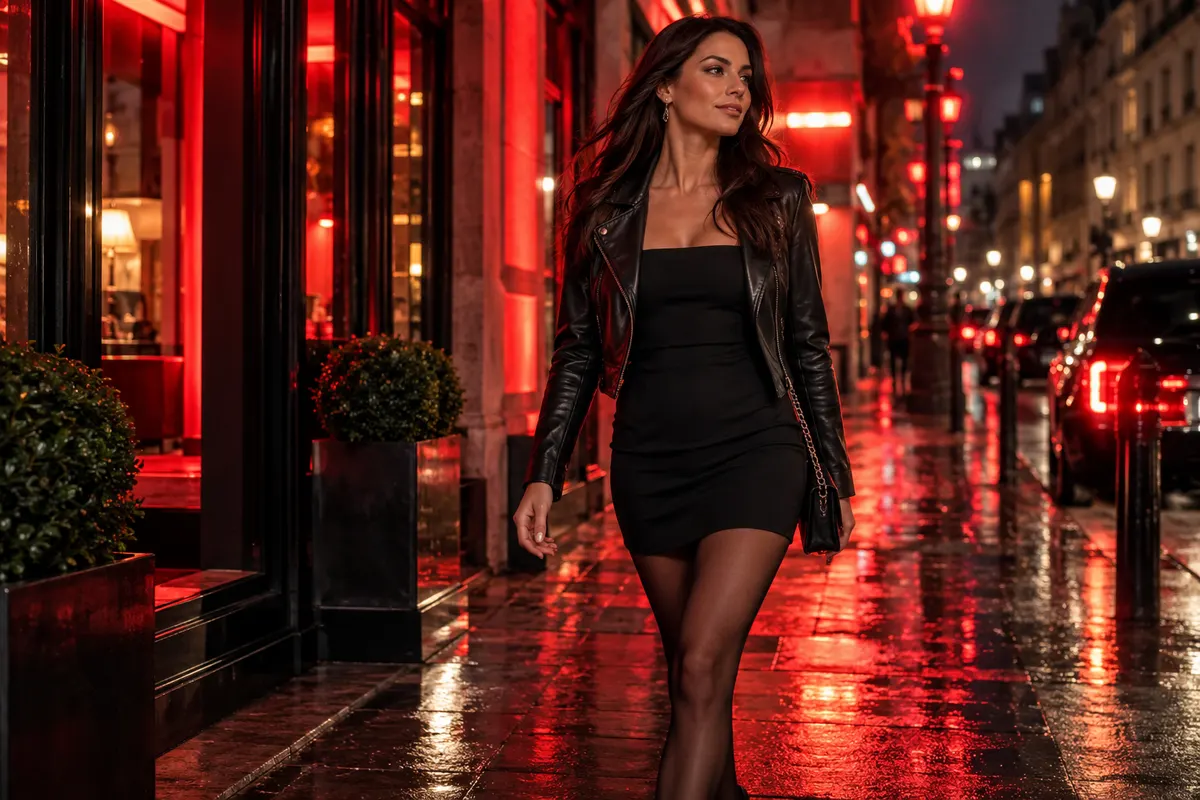
An iPhone glamour photograph may be stored in a high-efficiency image format even when it looks like an ordinary photo in the library. SpicyFrame accepts JPG, PNG and WebP references, with each file under 10 MB; HEIC is not one of the supported upload formats. Export an authorized adult photograph to a supported still-image format in a separate image tool, then inspect the exported copy before using it. Keep the scene non-explicit and preserve the approved original. Renaming a filename extension does not perform a conversion. The practical goal is a compatible, faithful reference that shows the adult face and outfit clearly, not a new-looking photograph created by accidental edits during preparation.
A photo library can present a still image alongside captured motion or other associated information. Selecting a Live Photo for a still-reference workflow should not be treated as uploading its original motion to the generator. Choose the intended still moment and export that image deliberately using a tool whose supported behavior you understand. SpicyFrame's reference upload accepts the listed image formats and uses them as visual references; it does not turn a still upload into a transfer of the phone's captured Live Photo movement. Decide whether the approved expression and outfit are best represented by the selected still. If the original captured motion itself is what the project needs, editing that footage is a separate production choice.
Apple's HEIF and HEVC support guidance explains that HEIF images can be converted by exporting from an appropriate app. It gives Photos or Preview on a Mac as examples, using File, Export and a format such as JPEG or PNG. If you are working only on an iPhone, use an image application with a documented compatible export rather than assuming every share action performs the same conversion. Keep the original HEIC and save the supported copy under a distinct name. The photo preparation guide helps with visual checks after export. Avoid sending an authorized private adult portrait to an unfamiliar converter merely because it is the first search result.
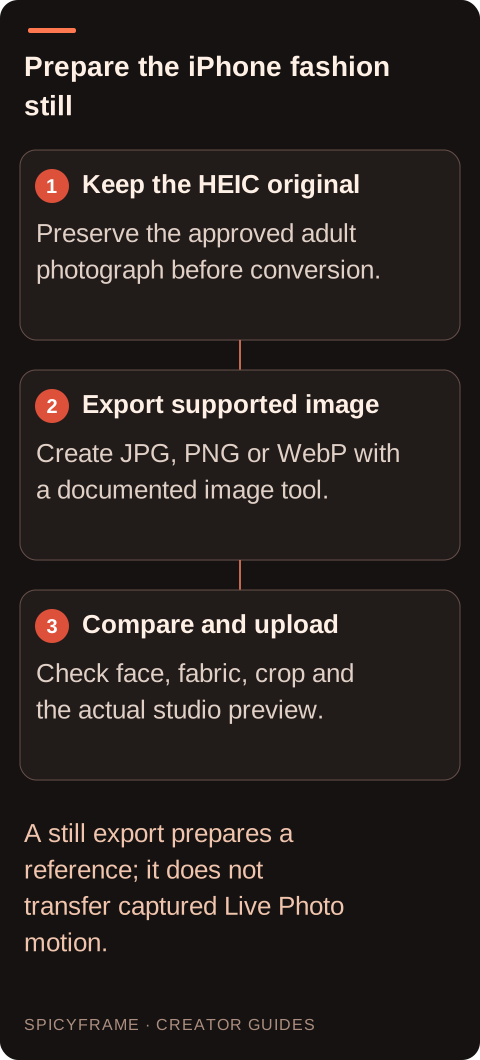
Open the exported still and compare it with the approved source. Look at skin tone, makeup, dark sleeves, bright jewelry and smooth studio shadows. Confirm that orientation and crop remain correct and that no accidental border, watermark or overlay has been added by the export tool. A compressed JPEG may be perfectly usable when it preserves the important detail, while an unnecessarily large copy may exceed the upload limit. Choose export settings based on the image's actual quality and file size. Do not repeatedly re-export a degraded copy if the original is available. The portrait guide provides composition context, but the immediate acceptance test is whether the compatible still remains a faithful representation of the authorized adult fashion photograph.
SpicyFrame generates vertical 9:16 MP4, so check whether the exported image gives the intended pose room to move. A wide iPhone photograph may include useful sleeve or hem information that a quick automatic crop removes. Choose the crop deliberately and preserve enough space for the small gesture planned in the video. The vertical composition guide helps evaluate those margins. Do not assume a format conversion needs a creative crop; they are separate choices. If the adult face or an important garment edge is already missing, return to a better source rather than asking output resolution to restore it. Keep the clothing intact and the framing consistent with the approved, non-explicit fashion purpose.
Imagine an authorized adult model selects a HEIC photograph in a satin-lapel jacket. The face is sharp, but the source is wide and includes one hand near the edge. Export a JPEG copy using a documented tool, then compare the face, lapel highlights and hand with the original. Check that the file is under 10 MB and that its vertical preparation preserves the intended pose. Upload the supported copy and inspect the studio preview before requesting a small shoulder turn. This hypothetical workflow is not a tested export or generation result. If the uploaded preview differs from the exported still, resolve that discrepancy before paying for a clip rather than assuming the final generation will correct it.
Apple's cited guidance describes Camera, Formats, Most Compatible on supported iPhone and iPad devices as a way to capture new photos and videos in JPEG or H.264. That setting concerns future captures; it is not a bulk conversion of every existing HEIC photograph. Check the current device options rather than assuming identical menus on every model or software version. If you regularly prepare authorized adult fashion images for tools that require JPEG, a compatible capture workflow may reduce later conversion work. Keep quality, storage and the photographer's original delivery requirements in mind. An existing approved photograph still needs its own supported export, and changing a camera setting does not alter the studio's accepted file types or create additional motion controls. Treat the export as a reference-preparation step with its own approval point. If the original photograph has deliberate color grading, compare the compatible copy under similar viewing conditions before deciding that a slight screen difference is an image defect. Inspect the actual garment highlights and shadow boundaries, not just an overall impression of warmth. If the copy is too large, adjust the export from the original and compare again, rather than repeatedly compressing a previously compressed version. Keep the face and the important textile area at a useful scale; reducing dimensions until the file is tiny can remove the very evidence needed for likeness and clothing review. A compatible file does not have to use the maximum allowed size, but it should preserve the details the intended action depends on. Name the exported copy clearly so a later upload does not accidentally select an old cropped version. If a photographer supplied the HEIC as part of an approved adult shoot, preserve the source and any agreed edit boundaries instead of treating format conversion as permission for additional retouching.
Before submission, check the selected filename, file size and preview, especially if the photo library contains several near-identical exports. Confirm the correct adult, makeup, outfit and crop. After generation, download the MP4 and review it separately from the image preparation step; a clean export does not guarantee correct animation. Decide where the original, compatible still and final video should be retained under the subject's agreed use. The privacy guide explains that storage off prevents library and draft saving while generation still requires processing. Device backups and third-party conversion services have their own behavior to inspect. A careful format workflow preserves both technical compatibility and the intended representation of the adult fashion source.
| Situation | Action | Verify |
|---|---|---|
| Source file is HEIC | Export a supported still in a separate tool | JPG, PNG or WebP under 10 MB |
| Photo includes captured Live Photo motion | Choose the intended still deliberately | The approved expression and outfit are visible |
| Export changes the portrait crop | Return to the source and adjust preparation | Hands and garment edges remain intact |
| Need compatible future captures | Review Apple's documented camera setting | It affects new captures on supported devices |
| Several similar exports exist | Check filename and uploaded preview | The correct authorized reference is selected |
The supported reference formats are JPG, PNG and WebP. Export a compatible still copy before uploading a HEIC source.
No. Renaming an extension does not encode the file as JPEG. Use a real export or conversion operation.
Do not assume so. Prepare the intended still image; the studio's supported reference upload is an image workflow.
No. Apple's described setting changes future capture formats on supported devices, rather than converting the existing library.
Check face detail, garment highlights, orientation, crop, file size and whether the exported copy matches the approved original.
Keep it if the project and agreed retention allow. It remains the source for a better export or later approved revision.
External pages, opened in a new tab. Rankings reflect the time of writing.